The VLC is one very popular free and open-source cross-platform media player and multimedia framework written by the VideoLAN project. It is best suited for streaming transcode media files and other multimedia files over computer networks. Even with its successes and popularity, VLC has its flipsides too.

However, some users report bugs and other malfunctions with VLC. This media player is also not the best for playing large audio or video files. All these and many other problems shouldn't spell an end to your entertainment experience.
In this review, we have sampled some of the best VLC player alternatives that you may want to check out whenever your version isn't working appropriately.
VLC media player Alternatives – Free Media Players Online
<Free download Video player & software Right Now!>
Navigation of Contents
1. Kodi Payer (formerly XBMC)
<Most Popular free open-source media streaming software>
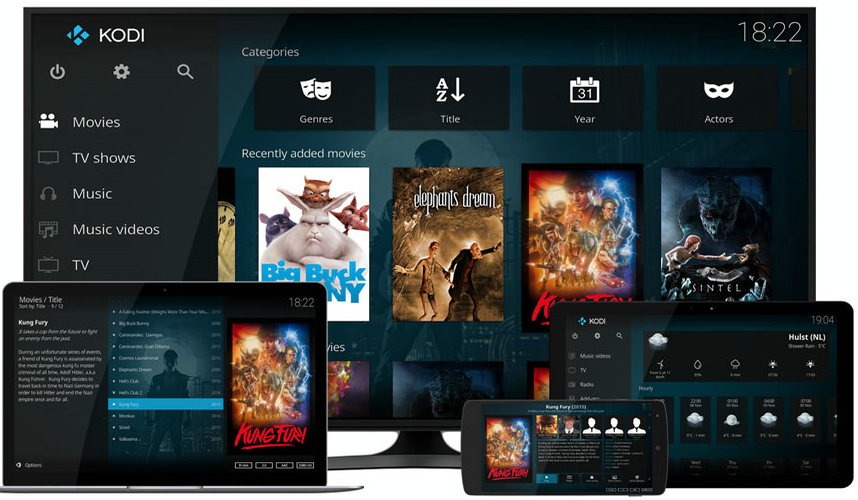
Ever tried Kodi? Experience a whole new world of video and audio quality from a quality player like no other. Kodi is the new media player sensation. It is a free and open-source media player built by the XBMC/Kodi Foundation.
Kodi player is compatible with all music formats, playlists, and even party mixes. Enjoying music never gets this better. And about movies? This is your ultimate movie-watching platform. It was so much better than your pile of DVDs on a shelf. It adds a unique twist of creativity, artwork, and cast genres to your favorite movies.
You want to organize your TV show and even photo collection, Kodi has your back. You never get such an attractive user interface on any other player, not even VLC. And it is compatible with multiple operating systems and hardware platforms. Its attractive 10ft user interface guarantees ease of use while providing an unrivalled entertainment experience.
Key Features of Kodi TV:
- Formats: MP4, MP3, MKV, AVI
- Operating systems: Windows, Linux, Mac OSX, Android, Raspberry Pi, OSX
- 100% open source
- Giant catalog of community add-ons
- Active community forum
- Supports video streaming
>> Download the Kodi TV latest version <<
2. KM Player
<High quality & powerful player support 4K, 8K, 60FPS>
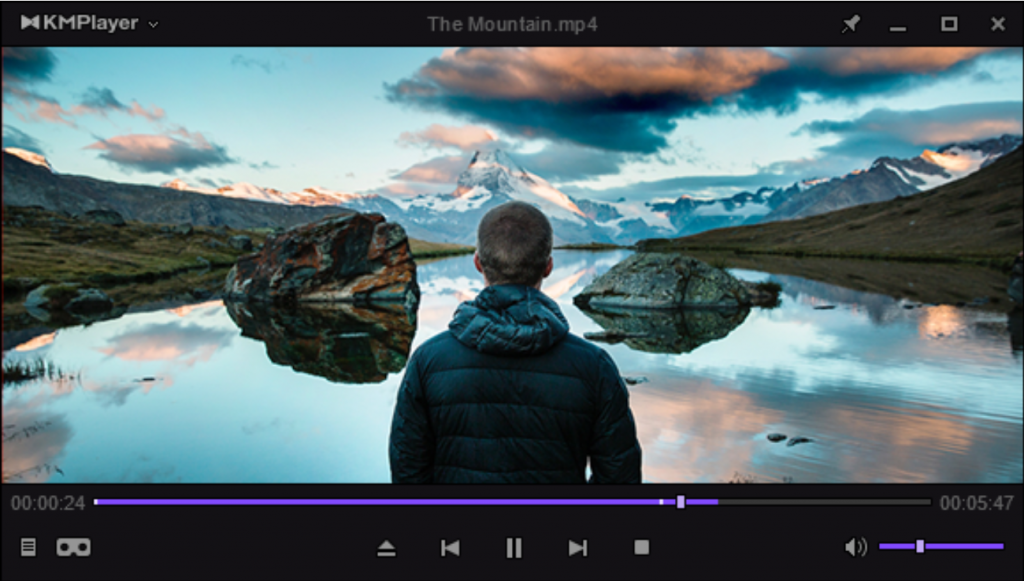
Are you looking for a media player that supports high-quality video formats like 4K, 8K, UHD, and even 60FPS? Must be KMPlayer. If you have an old PC model and aren’t sure of the best video and audio player for your PC, look no further. This player is compatible with just about any PC model, old and new.
It comes with an inbuilt high-quality video renderer. The hardware acceleration function allows for easy optimization to suit any PC model. You will also appreciate the video download function that even supports videos from popular sites like YouTube, Instagram, Daily Motion, etc. In addition to videos, this player also supports audios. It, therefore, supports a wide range of file formats including MP3, MWV, RM, OGM, FLV, 3G2, 3GP, MOV, WEBM, AVI, MPEG, MP4, and TS. What’s more, KMPlayer supports URL streaming function as well as video subtitles.
Key Features of KM Player:
- File formats: MP3, MWV, RM, OGM, FLV, 3G2, 3GP, MOV, WEBM, AVI, MPEG, MP4, and TS
- Operating systems: Windows, Linux, Mac OSX, Android, Raspberry Pi, OSX
- 3D video playback function
- URL streaming function
- Hardware acceleration setting and other external codecs
- Supports adverts
>> Download the KM Player latest version <<
You may be like,
- 10 free TV series download sites – 100% Free of charge!
- Top 10 free movies download websites without signing up
- YesMovies mirrors & Free movie Streaming Sites Added
3. Real Player
<Free media play to download and watch online videos>
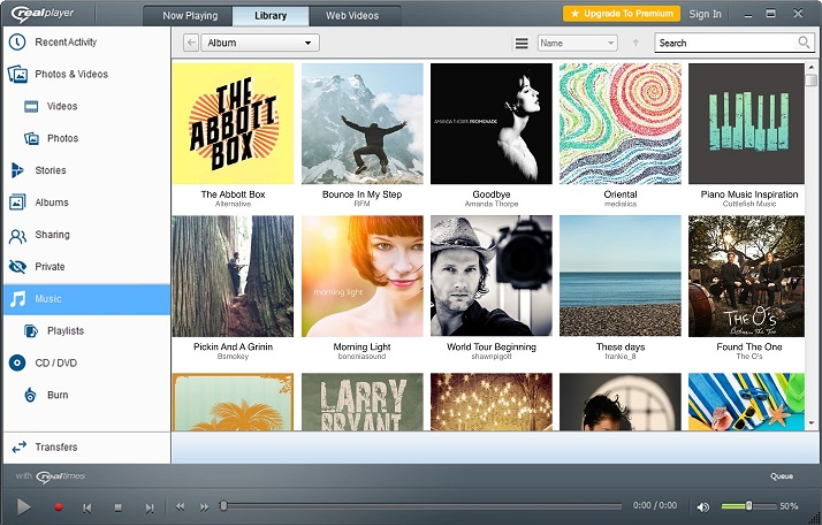
Do you want to watch and manage your videos, videos, audios and many more in the most trusted media player? Try out the Real Player. This freeware guarantees a superior viewing and listening experience. It even supports video conversion to different formats like MWV and MP3. Something else I like about this platform is the simple and attractive user interface. The UI has multiple subtitles for easier access to your favourite videos, podcasts and even music.
And unlike other conventional players, the Real Player helps you lock up sensitive videos with PIN thus restricting access. In order to enjoy using this player, all you need to do is download and install RealPlayer then create an account for free. With your account ready and set, you are ready to begin. You can use the downloader tools to grab your favorite videos and start playing and customizing your media.
Key Features of Real Player:
- Formats: MP3, MWV, RM, OGM, FLV, 3G2, 3GP, MOV, WEBM, AVI, MPEG, MP4, and TS
- Supported OS: Windows, Linux, Mac OSX, Android, Raspberry Pi, OSX
- Supports video conversion to different file formats
- Supports video locking for enhanced privacy
- Comes with an integrated CD burning software
- Helps you manage your media library in one place
- Supports HD video streaming on TV using Xbox One, Roku, and Chromecast.
>> Download the Real Player latest version <<
4. Media player classic home cinema (MPC-HC)
<Light-weight & Free open source media player>
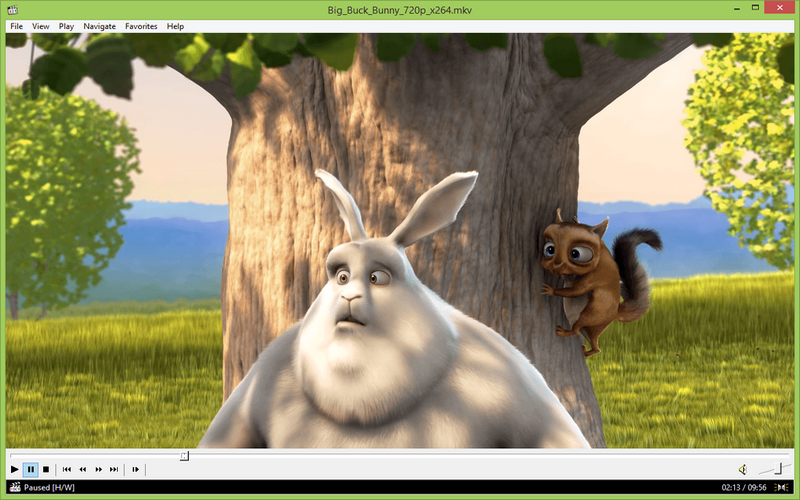
If you are looking for an ads-free visual experience, MPC-HC is worth checking out. This spyware-free media player only supports windows OS and very light for easy installation and functioning.
Because it is open-source, you can download and use it for free. What I love most about this player is the simple and intuitive interface featuring distinct categories. It works well on old as well as new PC models.
As such, you can be sure to watch your favorite movies on any SSE2 CPU or lower versions. It is also very customizable, thanks to its custom toolbars and an array of other options. MPC-HC is very versatile; can even function as a DVB player.
Key Features of MPC-HC:
- Operating system: Windows
- File formats: MWV, RM, OGM, FLV, 3G2, 3GP, MOV, WEBM, AVI, MPEG, MP4, and TS
- Lightweight and therefore runs on any SSE2 CPU and earlier versions.
- Very customizable to suit any media watching needs.
- Ads-free watching experience.
- 100% open source
>> Download the latest MPC-HC version <<
You may be like: free open source media players.
5. Gom Player
<4K High-Resolution & Convenient video player for PC>
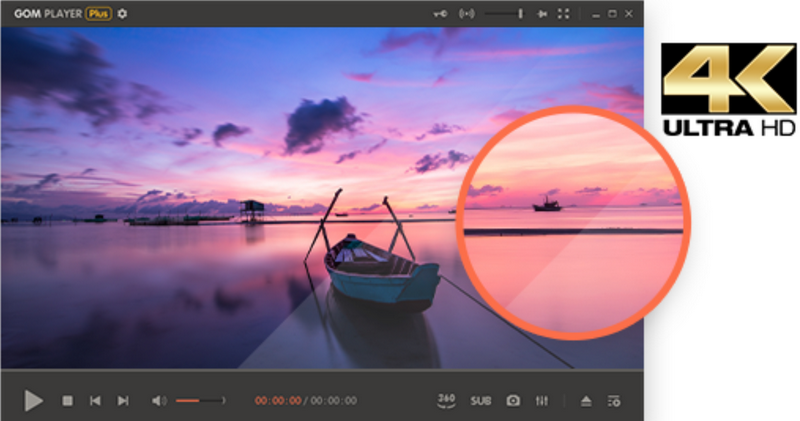
Looking for a player that supports YouTube VR videos? Must be the Global No.1 Free video player, GomLab. It supports a wide range of file formats including AVI, MP4, MKV, FLV, MWV, MOV, DVD and MP3. In addition to playing damaged or currently downloading files, this player also searches codecs.
GOM player has a large subtitle library featuring data collected over a decade long duration. This function supports automatic syncing of subtitles for all your favourite movies. Its subtitle library constitutes classics as well as recent releases. It has a highly immersive VR experience. Enjoy online searches for YouTube VR videos as well as 360o.
Key Features of Gom Player:
- High-resolution videos: 4K UHD movies without buffering
- 24/7 technical support
- Supported file formats: AVI, MP4, MKV, FLV, MWV, MOV, DVD and MP3
- Ads-free video playback environment.
- Operating systems: Windows XP, SP3 or later versions
>> Download the latest version <<
6. Art Computer graphics (ACG) player
<Best free media play for windows 10>
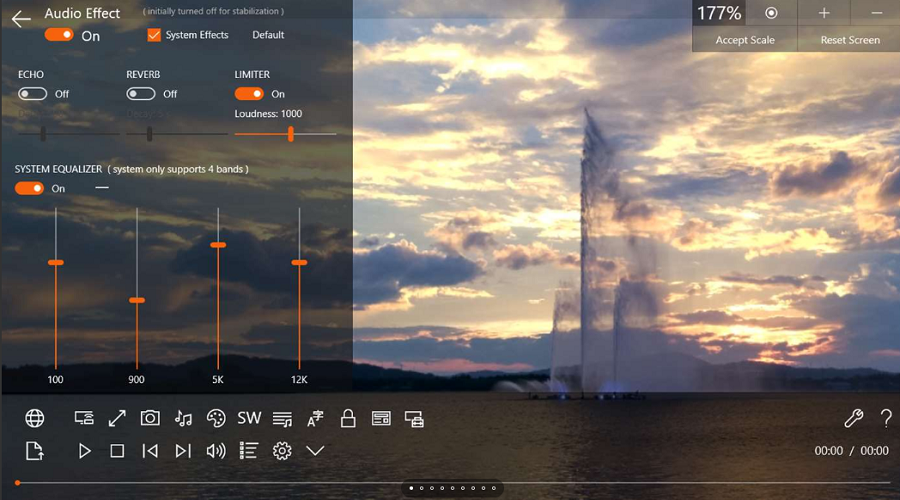
This is among a few media players that are designed to function only in Windows 10 devices. Some of these include Tablets, PC, and smartphones. It is super responsive, thanks to the pure native high-performance C++ design code. Customization of gestures and UI buttons is a breeze on the ACG player platform.
The UI features very attractive font subtitles and visualization art effects appearing in the form of musical fireworks. This is an open source player that also includes an IAP for blocking ads upon request. All videos come with free background music and subtitles.
Key Features of ACG player:
- Operating systems: Windows
- File formats: OGG, MP3, AVI, MKV, MPEG, VOB, 3GP, ASF, WMV, etc.
- Ads free viewing experience.
- User-friendly interface
- Supports online video streaming
- Multiple subtitle rendering
>> Download the ACG player latest version <<
7. DivX Player
This is more than just a video player. DivX Player supports high-quality video like 4K and UHD. You will also enjoy a variety of video formats like AVI, DivX, MKV, and MP4. In addition to these, DivX Player also has chapter points and smooth FF/RW which improve video quality greatly.
This freeware is an integration of 3 major components that supports the creation, playing and casting of your favorite videos to other devices. This player works best in windows and Mac OSX. The free version has limited features. The pro version comes with advanced playback and audio features. You will get to appreciate the use of FF/RW feature for quick navigation of scenes. Alternatively, you can look up different scenes using chapter points. The multiple audio support option allows seamless switching between soundtracks.
Key Features of DivX Player:
- Supported file formats: AVI, MP4, MKV, FLV, MWV, MOV, DVD and MP3
- Supported High-quality Video formats: MKV, HEVC, up to 4K.
- Has both free and pro version
- Compatible with Windows and Mac OSX
- Has an integrated media server that supports casting of videos, music and even photos to DLNA compatible devices.
- Ad-free watching experience
- Supports DTS-HD Plugin which lets you convert and play videos with DTS-HD audio.
- It has a DFX Audio enhancer with improves audio quality.
- The AC3 Edition supports AC3 audio playback.
>> Download the DivX Player latest version <<
8. Media Monkey Player
Struggling with organizing media files? Media monkey is all you need. It lets you manage 100,000+ music and video files without bogging down. Its attractive interface allows you to automatically look up and intuitively tag lyrics and other metadata from video file. In addition to playing your favorite videos and audios, Media Monkey also supports CD recording, downloading music, movies, and podcasts.
This player is compatible with various operating systems including Android, Mac OSX, iOS, and Windows. This makes it much easier to convert and even level your favourite tracks on the fly. You can also share contents via the DLNA feature. In addition, it also supports Wi-Fi syncing. Media Monkey supports a number of file formats including MP3, M4A, OGG, FLAC, MP4, AVI, and WMV.
Key Features of Media Monkey Player:
- File formats: MP3, M4A, OGG, FLAC, MP4, AVI, and WMV
- Supported operating systems: Android, iOS, Mac OSX, OSX.
- Supports DLNA file sharing and conversion to other formats. Like mp3, mp4, WMA, etc.
- Supports Auto-DJ and party mode.
- Android Media Monkey supports Wi-Fi syncing.
>> Download the Media Monkey Player latest version <<
9. 5K player
This player has a revolutionary design and supports high-quality videos like 4K, 5K, and 1080p HD videos. 5Kplayer offers a unique blend of DLNA controller, DLNA renderer and DLNA server. It combines free MKV HD video player, music player, DLNA and AirPlay-enabled media streamer and online downloader.
Some of the supported music files include MP3, AAC, APE, and FLAC. 5K Player supports wireless streaming of audio and video via AirPLay & DLNA with absolutely no quality loss. Enjoy downloading HD videos from YouTube, DailyMotion, and Vimeo.
Key Features of 5K player:
- Operating systems: Windows, Linux, Mac OSX, OSX, Android, and iOS.
- File formats: MP3, M4A, OGG, FLAC, MP4, AVI, WMV, 4K, 5K, and 1080p.
- Supports audio and video streaming via AirPLay & DLNA
- Supports video downloads from YouTube, Vimeo, DailyMotion, etc.
- It is a blend of DLNA controller, renderer and server.
>> Download the 5K player latest version <<
10. SMPlayer
This is a sleek designed video player loaded with very cool specs. It has a simple layout featuring a menu and some other basic tabs for a smooth video and audio play. Because it doesn’t have many playlist features, this player is best suited for playing videos. SMPlayer has a number of playback support features making it perfect for playing videos.
It supports internet streams and is powered by the MPlayer engine which supports many audio and video formats with no need for external codecs. Some of the file formats supported Include OGG, MP3, AVI, MKV, MPEG, VOB, 3GP, ASF, WMV, etc. It is also noteworthy that SMPlayer supports video subtitles including embedded subtitles in Matroska files, DVD subtitles, SRT, SUB, and SSA. For a much better view of the subtitles, you have the option of choosing alternative colors, font size & type.
Key Features of SMPlayer:
- File formats: OGG, MP3, AVI, MKV, MPEG, VOB, 3GP, ASF, WMV, etc.
- Supported subtitles: Matroska files, DVD subtitles, SRT, SUB, and SSA
- Operating systems: Linux, Windows, Android, iOS, Mac OSX.
- It’s free and open source distributed under the GLP license
- Ad-free viewing experience.
- Available in up to 30 languages
- Advanced audio and video features: subtitle delay, video equalizer, audio & video filters, playback speed-adjuster.
>> Download the SMPlayer latest version <<
11. Mplayer
Looking for a media player that supports just about any media format and also comes with a number of codecs and protocols? Must be the MPlayer. It comes with hardware accelerated H264 playback. What’s special about MPlayer is that it supports 4K ultra HD files and also lets you play your favorite media files in your Dropbox directly.
The video streaming protocols supported include live, Dash, Hls, Http, Https, Rtmps, Rtmp, etc. Apart from that, Mplayer supports audio codecs including AC3, DTS, AAC, MP3, OGG, etc. Its video codecs include H265, HEVC, H264, XDIV, DIVX, MPEG, VP8, VP9, etc.
Key Features of Mplayer:
- Ad-free viewing experience.
- Operating systems: Windows, Linux, MacOS, Android, and iOS.
- Audio codecs: AC3, DTS, AAC, MP3, OGG, etc.
- Video codecs: H265, HEVC, H264, XDIV, DIVX, MPEG, VP8, VP9, etc.
- Supports 4K UHD videos
>> Download the Mplayer latest version <<
12. MPV player
MPV features an improved MPlayer’s options parser that functions quite like CLI programs. It also has semantics and option names which are more intuitive and responsive for much better performance. A small on-screen controller comes in place of an official GUI for much easier control and playing of your favorite video and audio files.
Its OpenGL based video output packs many features including high-quality algorithms, color management, frame timing, interpolation, HDR, among others. It supports GPU video decoding, thanks to FFMPEG HWACCEL APIs which are leveraged to support VDPAU, VAAPI, and Video Toolbox. It has a well-designed CAPI making it very compatible with other applications.
Key Features of MPV player:
- Streamlined CLI options
- On-screen controller
- High-quality OpenGL video output.
- Supports video decoding acceleration
- Operating systems: Linux, Windows, Mac OSX, Android, and iOS.
>> Download the MPV player latest version <<
13. BSPlayer
If you are looking for a multimedia player which is light-built and supports more than 90 languages, the BSPlayer is a very good option. Because it uses little CPU resources, this player is ideally suited for older generation computers as well as current versions. It supports playback of HD DVD and AVCHD movies along with YouTube videos.
BSPlayer features advanced subtitle formats including MicroDVD, Sub, VobSub, Sub+, Idx, and SubViewer. It also supports advanced formats including SubStation Alpha.Ssa or.Ass, SubRip .srt, VPlayer .txt. And because it is also an AVCHD player, you can enjoy playing your favourite AVCHD videos with minimum effort. It is open source and supports a wide range of media file formats including WebM, Xvid, Avi, MPG, MPEG, 3ivx, AVC HD, YouTube streaming, QuickTime MOV, OGM, Matroska, RM Real media, MKV, Asf, Wmv, DV, and Mp4.
Key Features of BSPlayer:
- File formats: WebM, Xvid, Avi, Mpg, Mpeg, 3ivx, Avc Hd, YouTube Streaming, Quick Time MOV, Ogm, Matroska, Rm Real Media, Mkv, Asf, Wmv, DV, and Mp4.
- Operating systems: Windows, Linux, MacOS, iOS, and Android.
- Ad-free watching experience.
- Available in up to 90 languages.
- Supported subtitles: Matroska files, DVD subtitles, SRT, SUB, SSA, etc.
>> Download the BSPlayer latest version <<
14. Pot Player
Want to enjoy some immersive 3D viewing experience? PotPlayer is all you need. The PotPlayer supports OpenCodec which can be easily added by players during video play.
There’s no need to install different codecs all the time you are using this media player. In addition, PotPlayer is built for smooth seamless video play while still letting you preview the scene with snapshots. Enjoy watching videos in Direct3D9 Ex Flip Mode and Overlay.
If your computer supports multiple soundcards, Pot Player allows you to choose any or all of them for audio output. This media player runs smoothly on a number of devices including DVD, TV, and HDTV. It is also supported by a number of operating systems including Windows, Android, Mac OSX, iOS, Linux, etc.
Key Features of Pot Player:
- Supported file formats: WebM, Xvid, Avi, Mpg, Mpeg, 3ivx, Avc Hd, Quick Time MOV, Ogm, and Matroska.
- Streaming: supports YouTube streaming
- Supports chapter or scene bookmarking.
- Ad-free watching experience.
- Operating systems: Windows, Linux, Android, Mac OSX, and iOS
>> Download the Pot Player latest version <<
15. Windows media player
Windows media player is designed by Microsoft specifically for the Windows operating system. It also works on MacBook if you download media components for QuickTime. Depending on the type of windows on your device, there’s a particular Windows media Player version that is best suited.
For instance, Windows 7, 8.1, and 10 all support windows media player 12. Windows RT 8.1, on the other hand, doesn't support any version of the player. In order to use this player on Mac OSX, you need to download Windows media components for QuickTime.
Key Features of WM player:
- Operating systems: Windows, and Mac OSX
- File formats: Ogg, Mp3, Avi, Mkv, Mpeg, Vob, 3gp, Asf, Wmv, etc.
- Audio codecs: AC3, DTS, AAC, MP3, OGG, etc.
- Video codecs: H265, HEVC, H264, XDIV, DIVX, MPEG, VP8, VP9, etc.
- Supports 4K UHD videos
- Ad-free viewing experience.
>> Download the WM player latest version <<
16. Bomi Player
Bomi is a multimedia player which is very simple and easy to use. It’s loaded with powerful features and tools for convenience and ease of use. To begin with, this player’s GUI is based on Linux MPV.
Its user-friendly interface comes with a preference dialog where you can configure your settings to suit your taste and preference.
If you are worried about resuming your favourite music video or movie from where you stopped, Bomi Player has your back. It supports unlimited playback history which makes it easier to resume playback from where you stopped. You will also appreciate the automatic playlist generation feature. This function also automatically saves your last playlist by default.
Key Features of Bomi Player:
- Operating systems: Windows, Linux, Android, MacOS, and iOS.
- Supported file formats: OGG, MP3, AVI, MKV, MPEG, VOB, 3GP, ASF, WMV, etc.
- Supports video streaming
- Ad-free watching
- Supports unlimited playback history
- Renders multiple subtitles including styled subtitles like ASS and SAMI formats.
- Supports hardware accelerated decoding by GPU with the help of MPV.
- User-friendly interface
>> Download the Bomi Player latest version <<
Conclusion
These are some of the best VLC alternative media players. Most of them do not support Ads and as such, guarantee a very impressive viewing experience.
They also support a range of audio and video file formats. Somehow these multimedia players will support and play any video or audio file of your choice. We have also provided you with a link for downloading the latest version of each of the enlisted VLC alternative media players. Be sure to check them out.